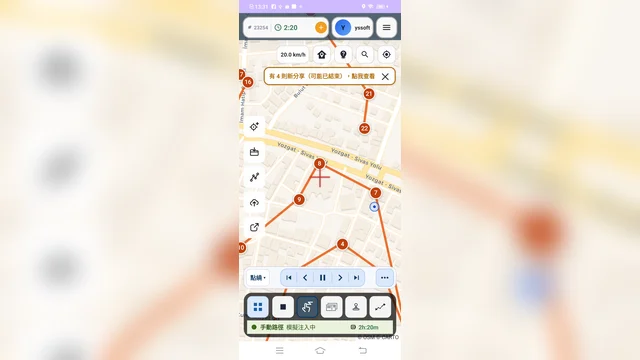
01
One complete run
Map the screen to real coordinates, find the targets, build a route, choose how to walk it, play, collect, share — seven steps end to end.
Written for 2212
Follow along; the common sticking points are on the same page.

Classic follows the route, Orbit circles each point, Jump-walk crosses through and hops on. The difference is in the timing, which a still image cannot show. This animation makes it clear in ten seconds.
Open the Playback overlay lessonA duration means that lesson has a video. Illustrated steps are Traditional Chinese only, and some lessons have no video yet.
Map the screen to real coordinates, find the targets, build a route, choose how to walk it, play, collect, share — seven steps end to end.
Written for 2212
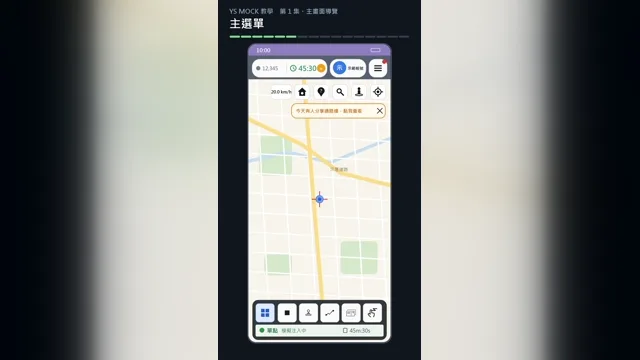 2:48
What every part of the main screen does: time and coins, map toolbar, mode bar, status bar.
Written for 2212
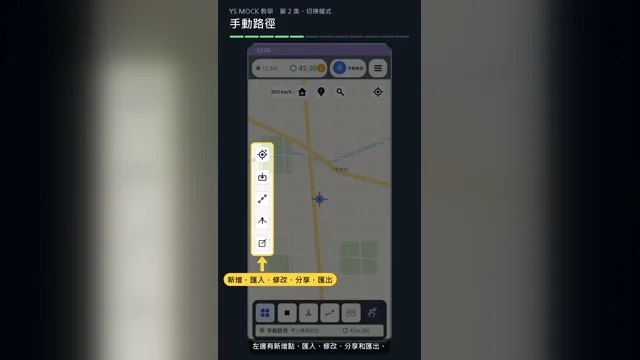 2:28
Using and customising the bottom shortcut bar, and opening the full mode list.
Written for 2212
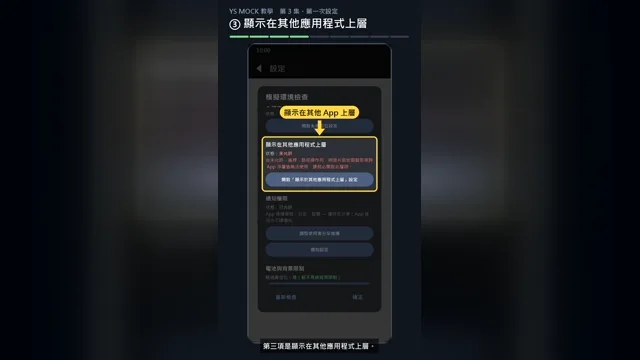 1:55
Location permission, mock location app, overlay permission and battery optimisation.
Written for 2212
 2:17
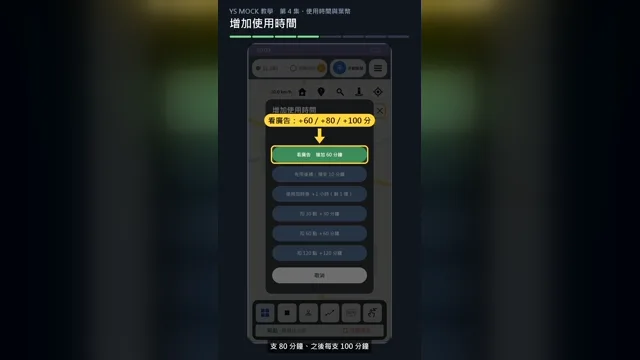
How usage time works, what happens when it runs out, three ways to top up, and what coins are for.
Written for 2212
 2:00
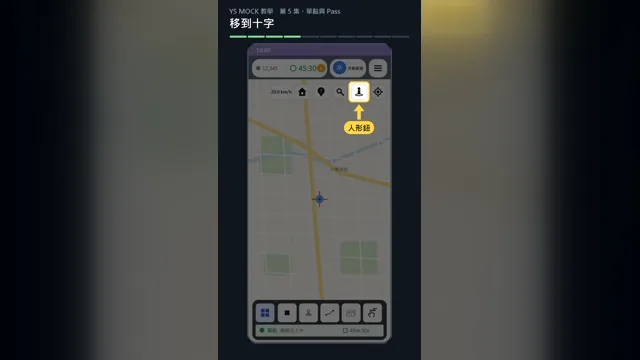
Holding one fixed position, and switching back to the real GPS with one tap.
Written for 2212
 2:10
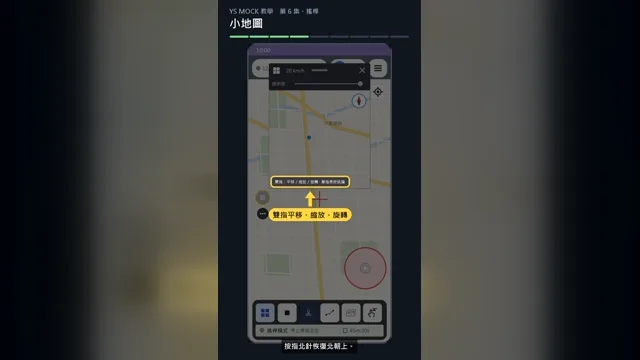
Move by dragging a floating joystick over other apps; speed and opacity are adjustable.
Written for 2212
 2:14
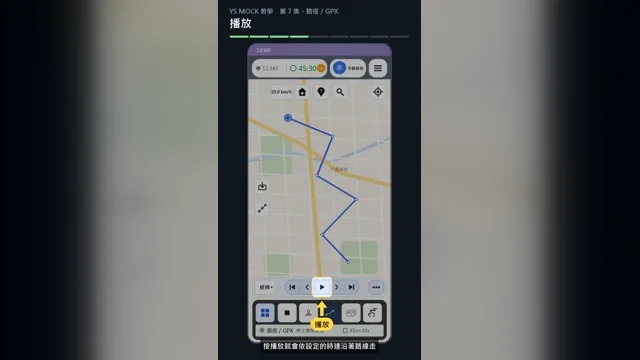
Import a GPX track and follow it: play, pause, reverse, jump to a point, change speed.
Written for 2212
 3:36
Control playback from any other app: play/pause, step point by point, change speed, set looping.
Written for 2212
 3:17
Draw your own polyline, fine-tune it, re-run the shortest path, export coordinates or an offset route.
Written for 2212
 3:35
Search by coordinates or place name, pull every coordinate out of a pasted block of text, and check the local date before you jump.
Written for 2212
 2:27
Browse shared location cards, jump to one, and use the postcard overlay outside the app.
Written for 2212
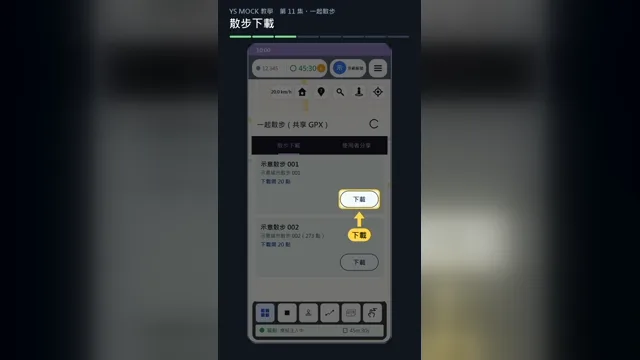 1:39
Download routes other people shared and play them yourself: an official list and a user-shared list, a coin price per route, and a 23-hour download window.
Written for 2212
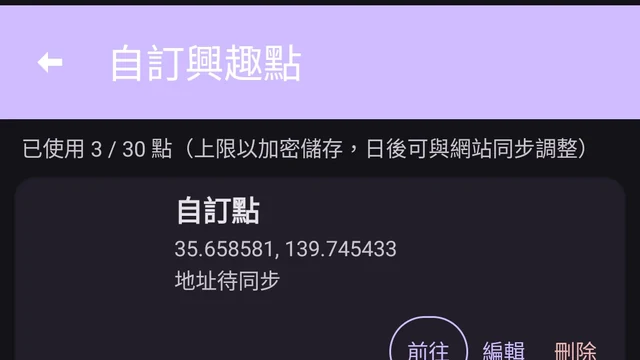
Save places you visit often as a list and jump to them in one tap; add them straight from search or postcards.
Written for 2212
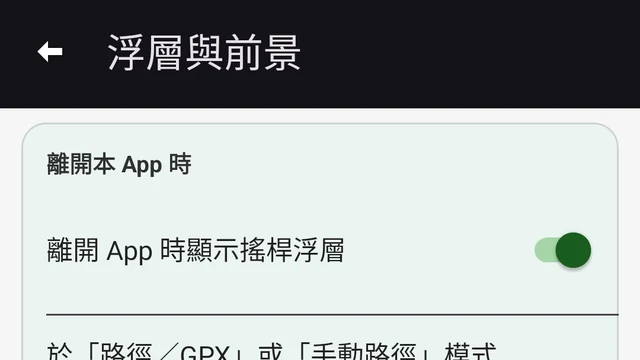
How to drag the ball and collapse the panel, plus which apps overlays appear in, whether they stay or collapse when you switch away, and what colour each collapsed button is.
Written for 2212
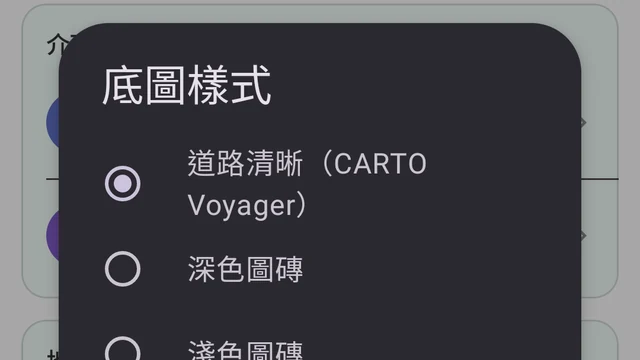
Four base maps to choose from: OpenStreetMap Standard (the default, local-language labels), Voyager, dark and light. Appearance only — location and routes are unaffected.
Written for 2212
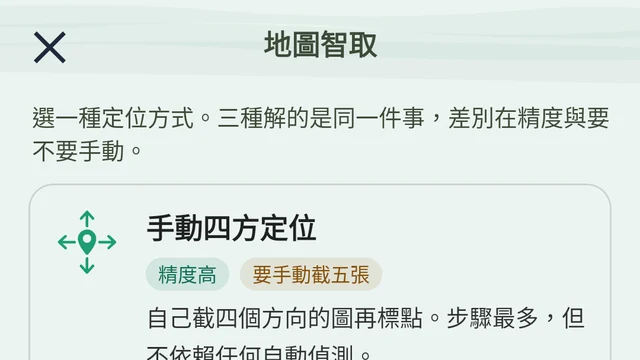
Three methods solve the same problem — teaching the app to read the map on your screen. They differ in accuracy and how much manual work they take.
Written for 2212
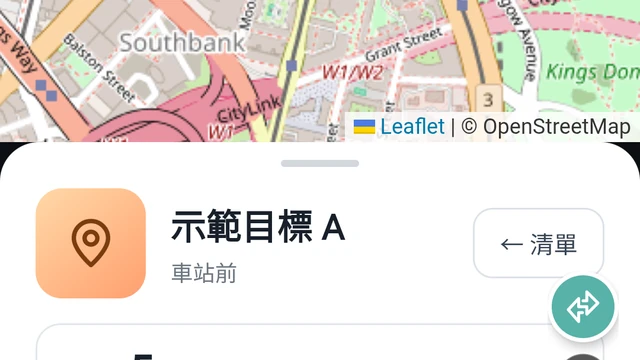 3:09
Point out where you are and where the target is, type in the distance the other app reports, and close in round by round.
Written for 2212
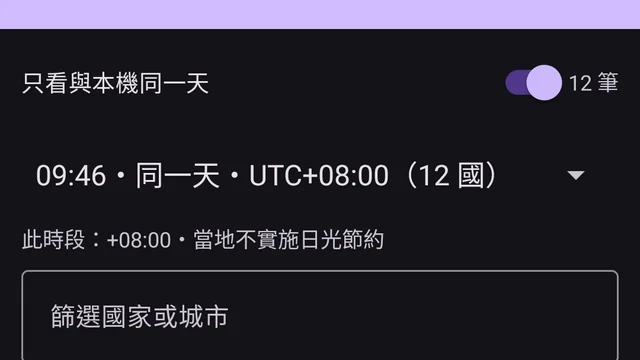
See the real local time in every time zone right now, filter countries by the time you want, then jump to a well-known city there.
Written for 2212
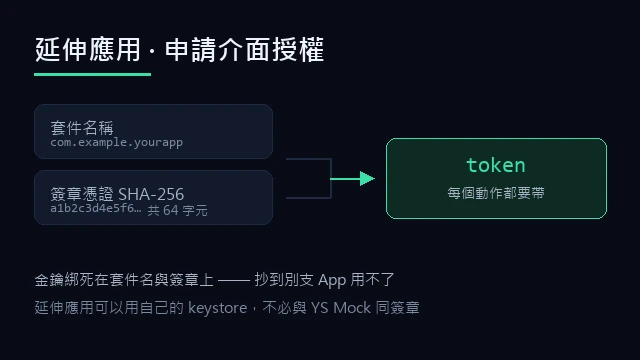
YS Mock exposes a coordinate channel to other apps. Connecting needs an access key: what to prepare, who to ask, and how to use it.
Written for 介面 v2
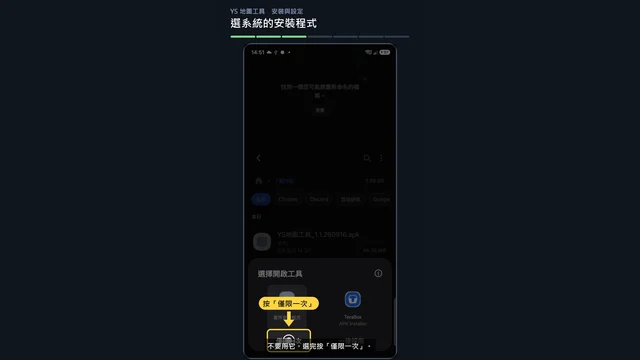 1:56
Put the APK in Downloads, check the filename, and install it with the system installer.
Written for 1.1.260920
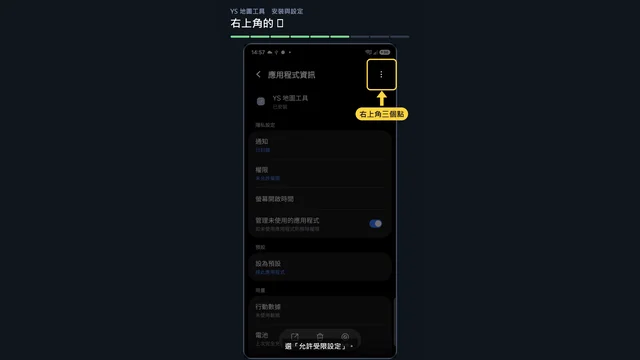 2:42
Overlay, accessibility, and the one that trips everyone up: allow restricted settings.
Written for 1.1.260920
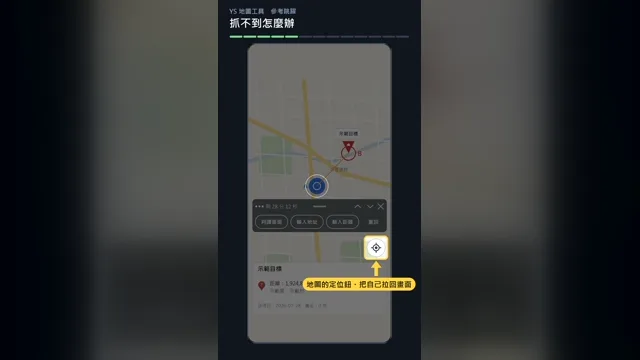 3:41
Work out a target coordinate from two on-screen points plus a distance, or type an address, then let YS Mock apply it.
Written for 1.1.260920
Two entry points: the lookout only watches; the finder asks one thing at a time (where, how big, which kinds), then moves your position and collects a list. Six ways to pick an area, how start and pause work, what the panel says, and what to do when it stops.
Written for 尋菇 1.1.261111.2