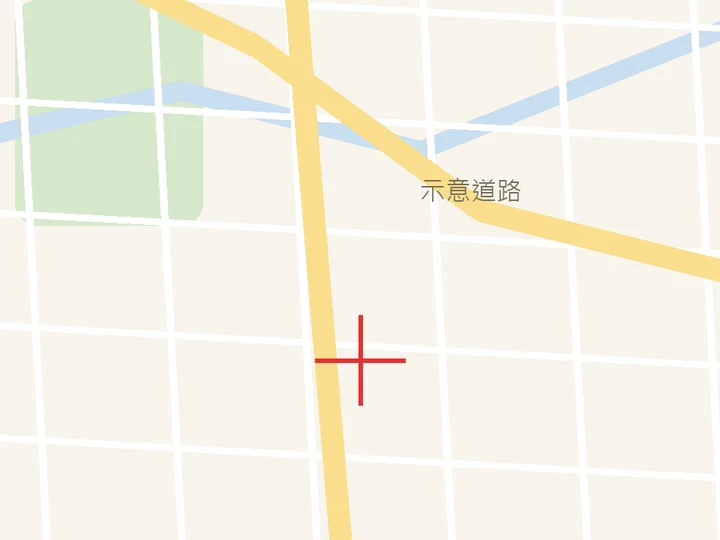
Be wherever you want
Drag the map onto the centre crosshair, or just search a place name, and you stay there.
Pin a location, import a route, or walk it yourself with a joystick. YS Mock reports that position to apps that use system location, and one tap puts you back on the real GPS.
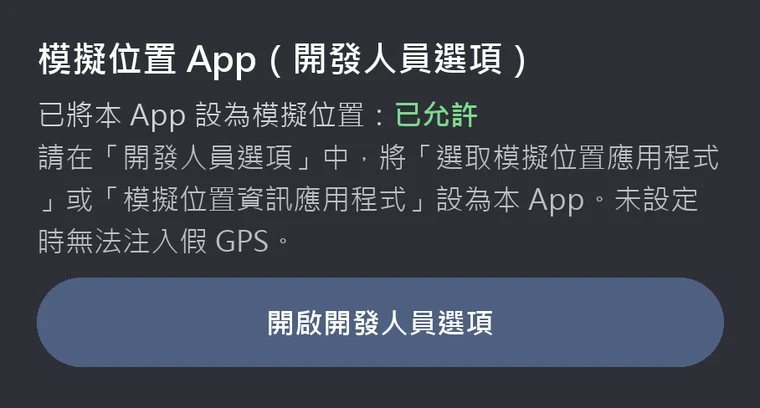
Android 8.0 or later · Choose YS Mock as the "mock location app" in developer options · No root
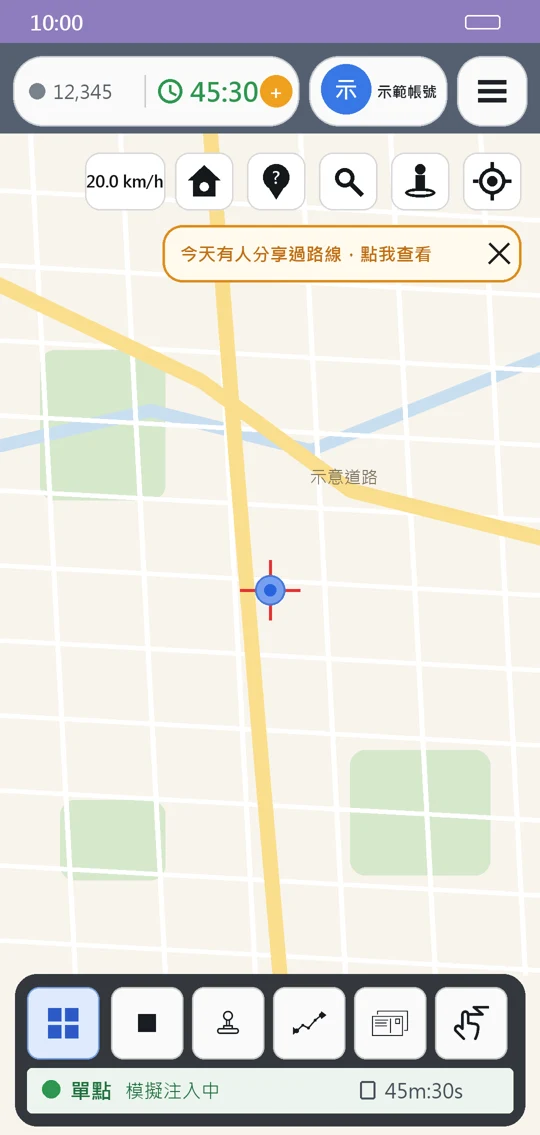
Four cards covering what this app does for you — each with a real screen.
Drag the map onto the centre crosshair, or just search a place name, and you stay there.
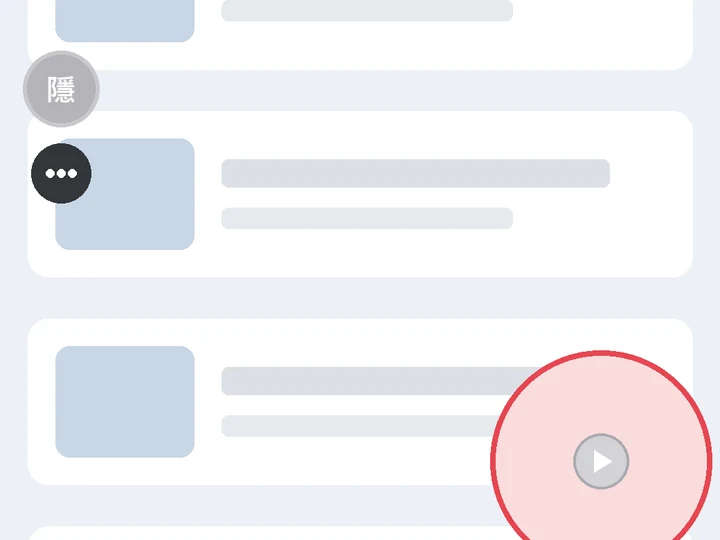
The overlay follows you into other apps: a small ball when collapsed, a panel when expanded. Route playback keeps running, and search, mode switching and topping up time all work right there.
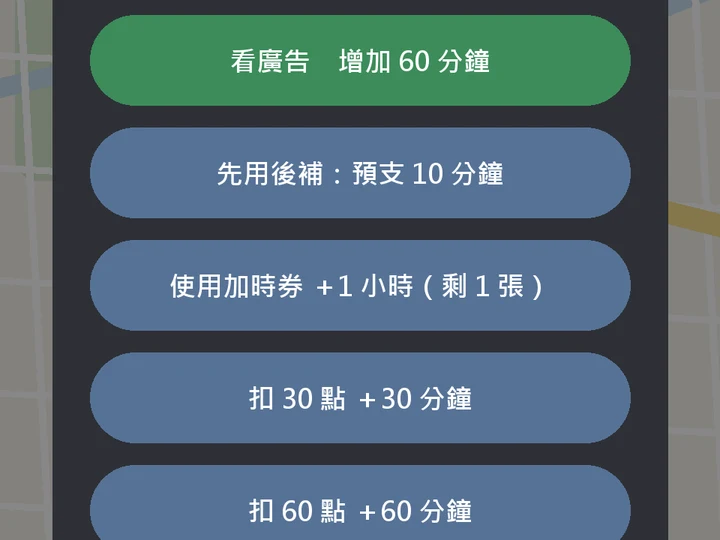
No paid unlock, no subscription. When time runs out, watch an ad or use a ticket or leaf coins.
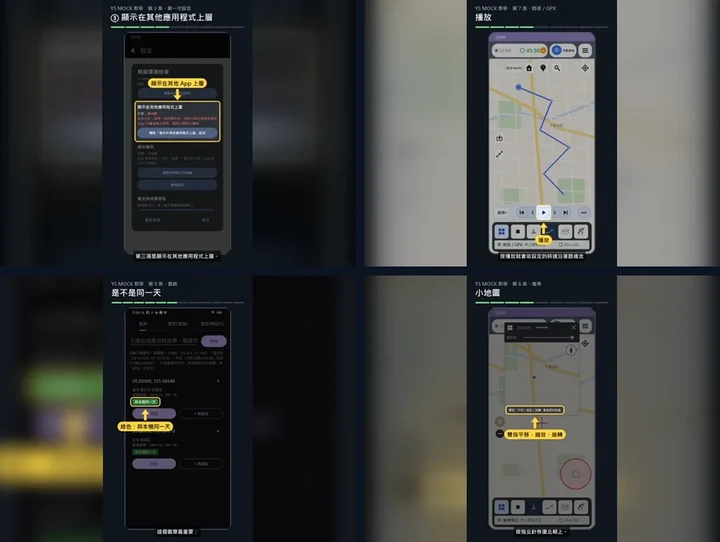
The learning center is one lesson per feature, each marked with the app version it was written for. Illustrated steps are in Traditional Chinese only. Some lessons have no video yet.
Lesson 1: what everything on the main screen does, how to switch modes, and how to tell whether mocking is on.
In developer options, set the mock location app to YS Mock. You only do this once.
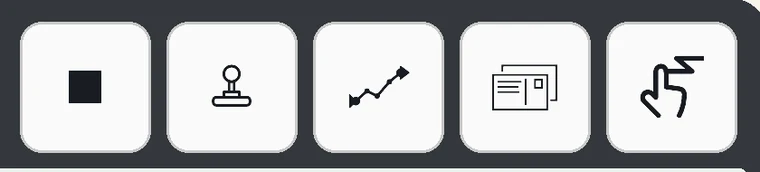
Stay at one spot, follow a route, or walk it yourself with the joystick.
Other apps read the location you chose, and one tap puts you back on the real GPS.
Search for a place or long-press the map, and your location stays there.
See the tutorial →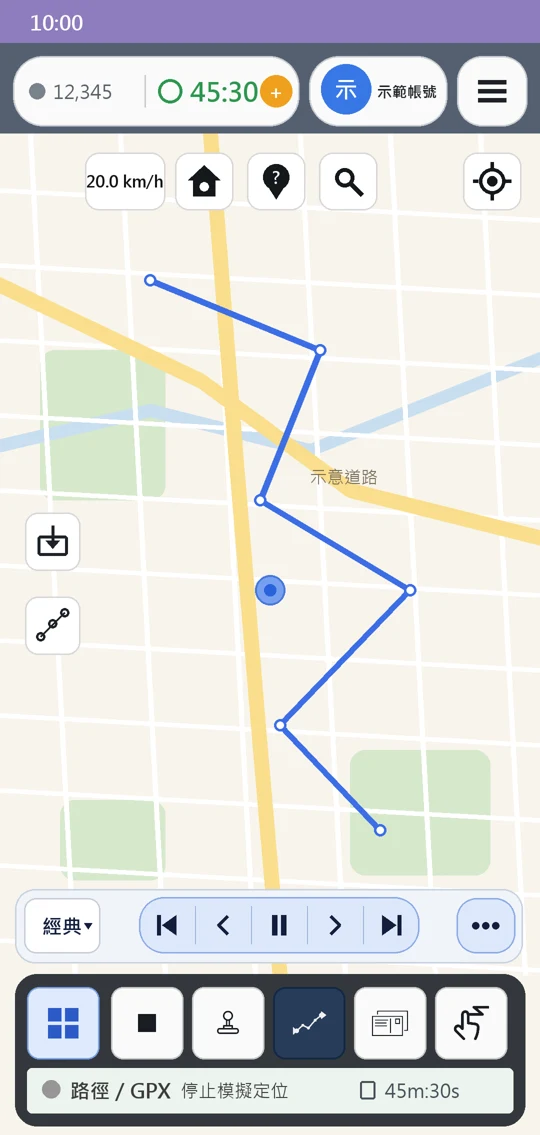
Import a GPX file and press play. Speed, pause and reverse are all under your control.
See the tutorial →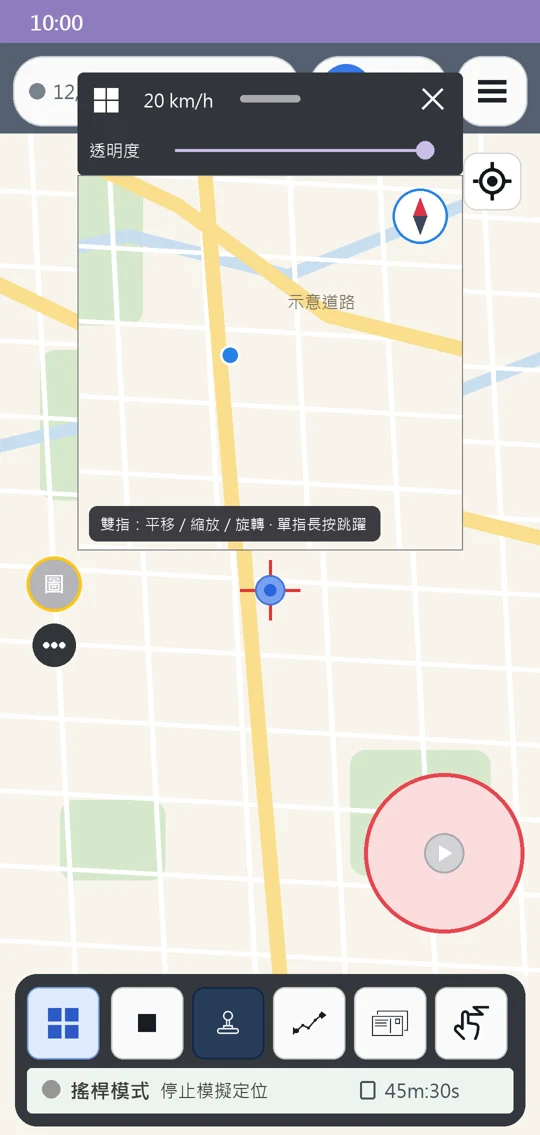
A floating joystick sits on top of other apps — drag to move, let go to stop.
See the tutorial →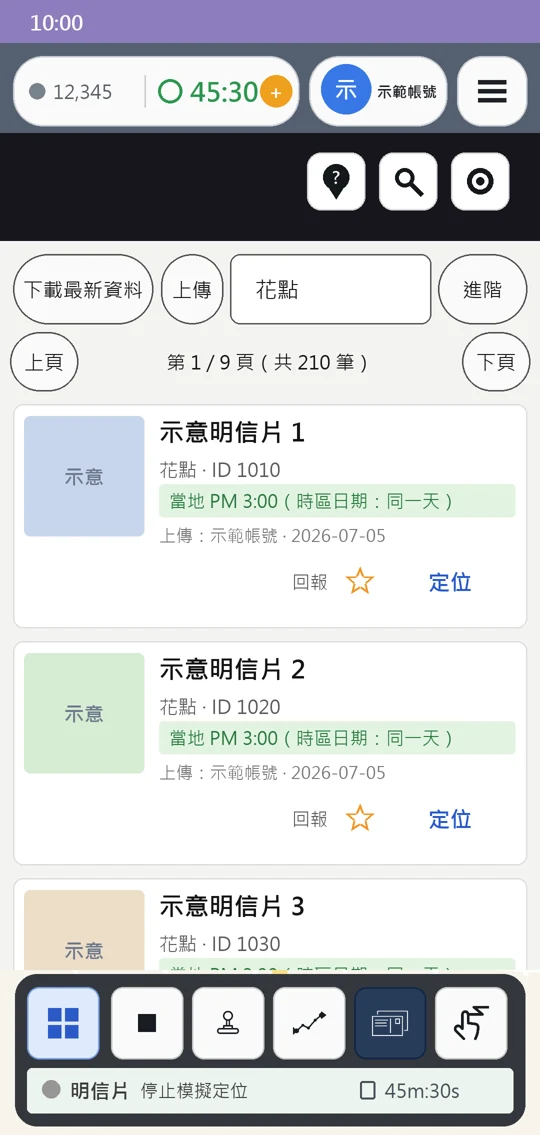
Postcards are location cards people share; pick one to move there, or upload your own.
See the tutorial →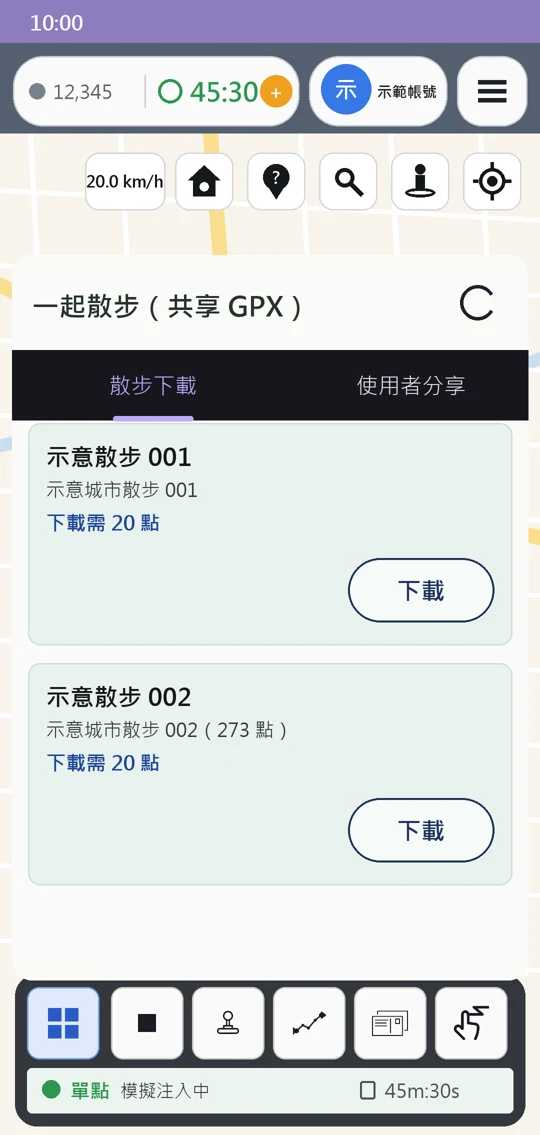
Share a route and both of you follow the same path in sync.
See the tutorial →The full feature list — the tutorials show each one in use.
These features are not separate — they are six steps on the same line. Four you walk yourself; the last two you share.
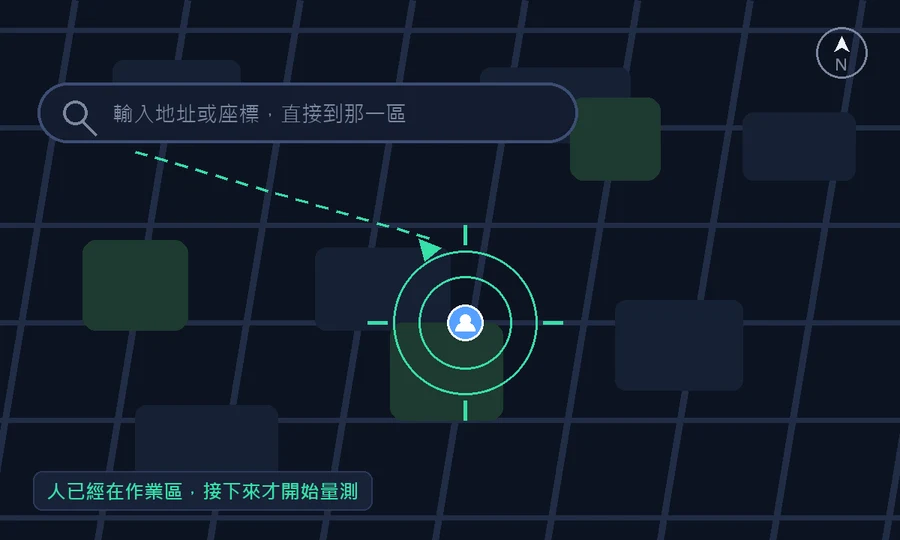
Type an address or coordinates, or just pick a spot on the map, and you are in the area. Everything after this starts here.
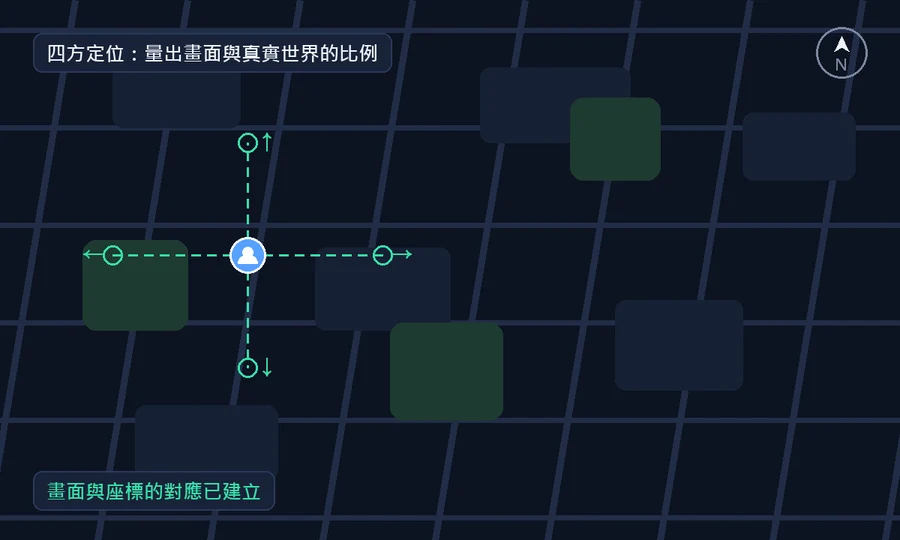
Four-point calibration establishes the correspondence between the screen and real-world coordinates. You press once and wait for it to finish. After that, any point on screen converts to real coordinates.
Measurement and reading are provided by an extension built on the open interface.
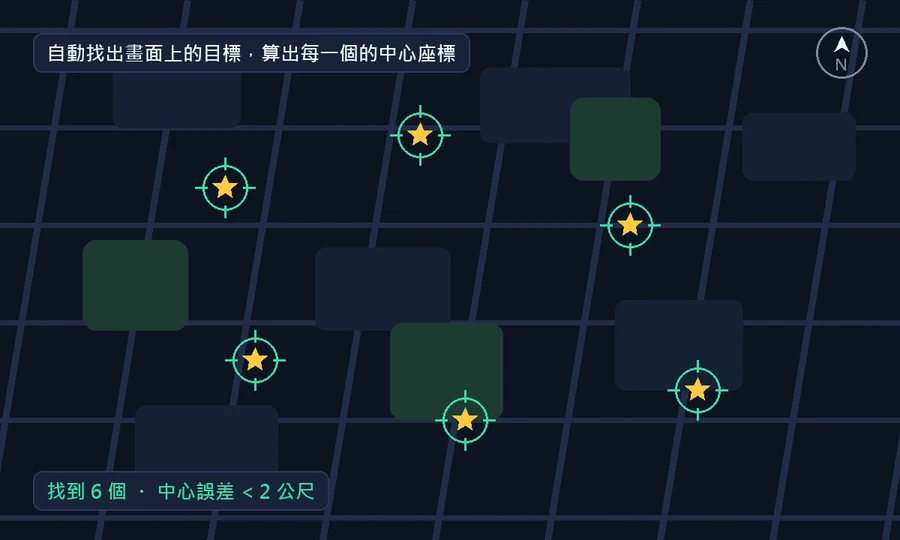
Once the correspondence is established, targets on screen can be found automatically and their centre coordinates computed. Tapping by hand is not just slow, it is imprecise — a few metres off changes the outcome.
Import them into a manual route: drag to adjust, re-order for the shortest path, add detour points, then save. Next time you just load it.
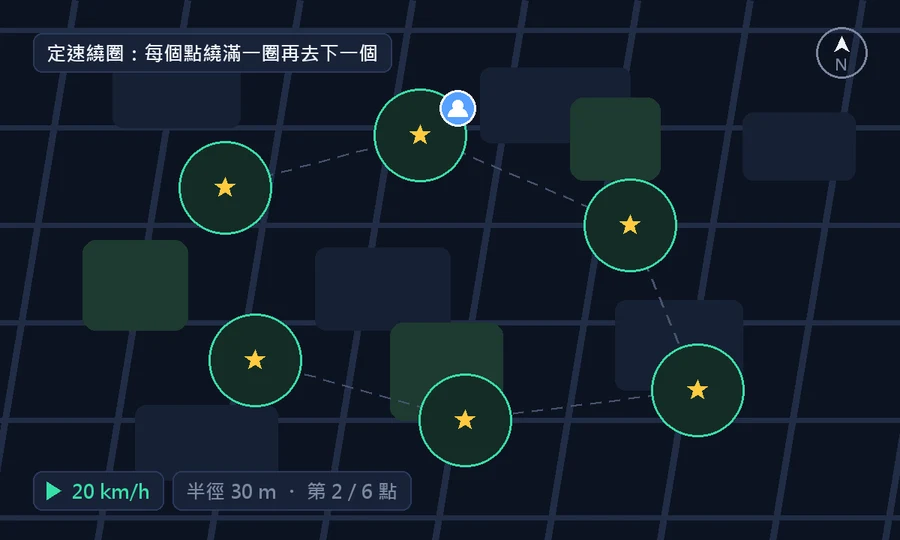
Constant-speed playback, no surging. Need to linger at each point? Use orbit — one lap per point before moving on, with adjustable radius and pause, up to 10 loops. It keeps running when you switch apps.
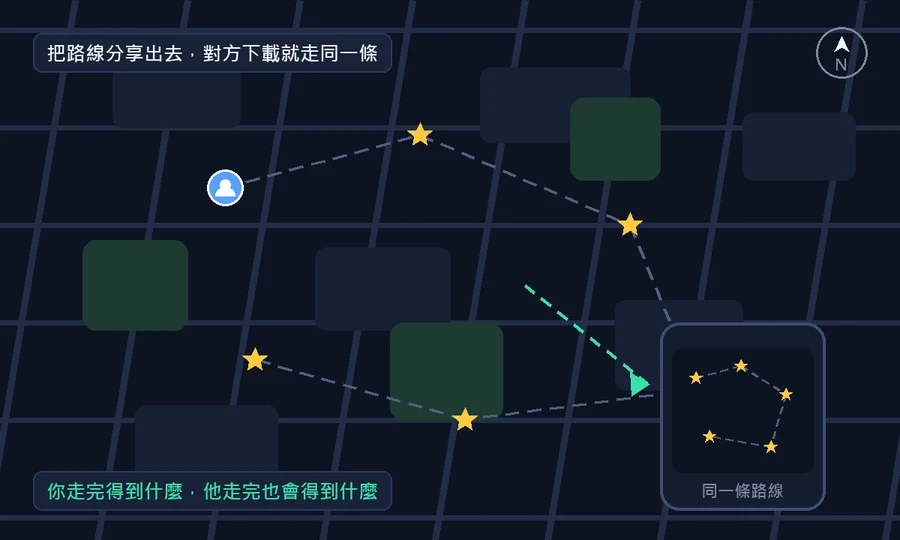
Share the route; the other person downloads it, it loads automatically, and pressing play walks the same line.
When you do not need laps, switch to jump-walk or step mode, or move straight to the centre of the area.
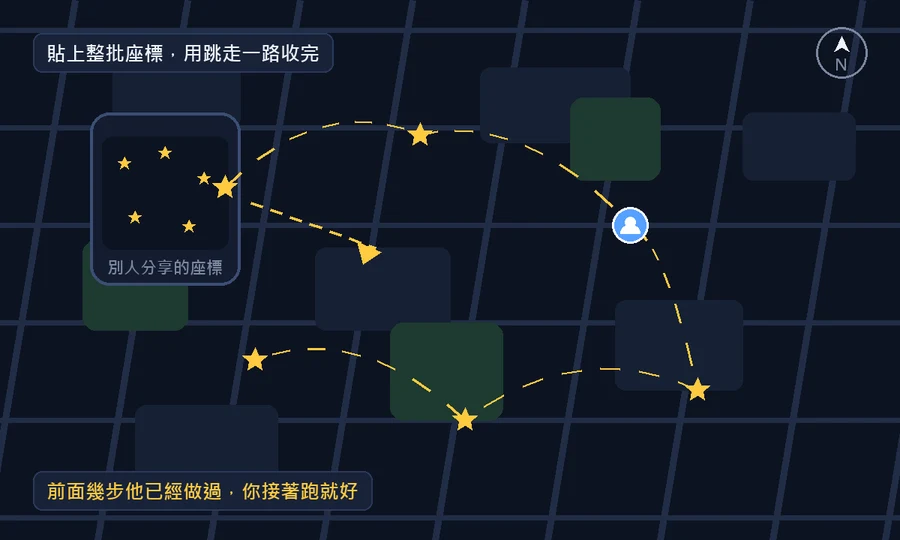
Paste in a batch of shared coordinates and collect them with jump mode. They already did the earlier steps — you just carry on.
Every mode has its own overlay: a small ball when collapsed, a panel when expanded, so it never sits in your way. Playback keeps running when you switch apps, and you can search, change modes and top up your time right there.
Leaving YS Mock mid-route does not stop playback. The overlay has pause and resume, previous and next point, how far along you are, and your remaining time — no need to switch back. It also warns you before your time runs out.
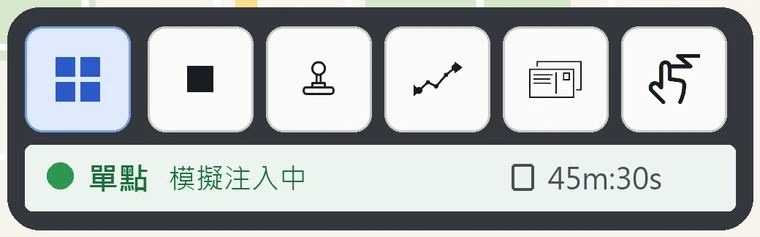
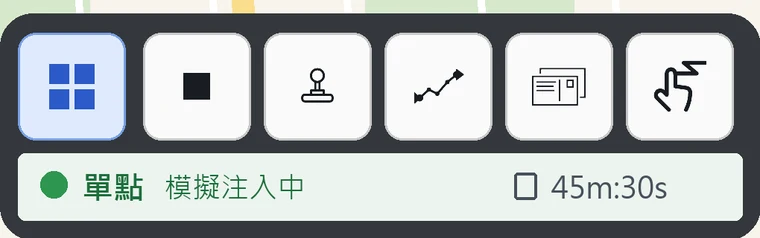
Everything is on the main screen: modes along the bottom, map tools in the row above, and a status bar that always tells you which mode you are in and whether mocking is on. Set it there, then drive it from the overlay.

Because the situations differ: the joystick is a drag pad for wandering freely, route playback is a transport bar for following a set path, postcards flip between saved places, and reference jump is a reading panel.
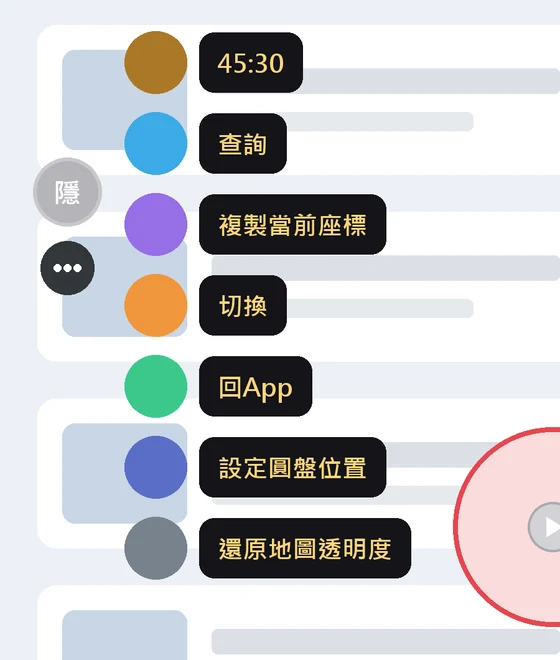
The overlay drawer holds the common actions: search a place and go, copy the current coordinates, change mode, add usage time, or jump back to the app.

Drag the ball anywhere, shift the panel up or down so it stops covering things, and adjust the mini map opacity. Left-handed? Move the pad to the left. The bottom mode bar is yours to pick and reorder too.
No paid unlock and no subscription. Every feature is open — watch an ad for usage time and you can use all of it.
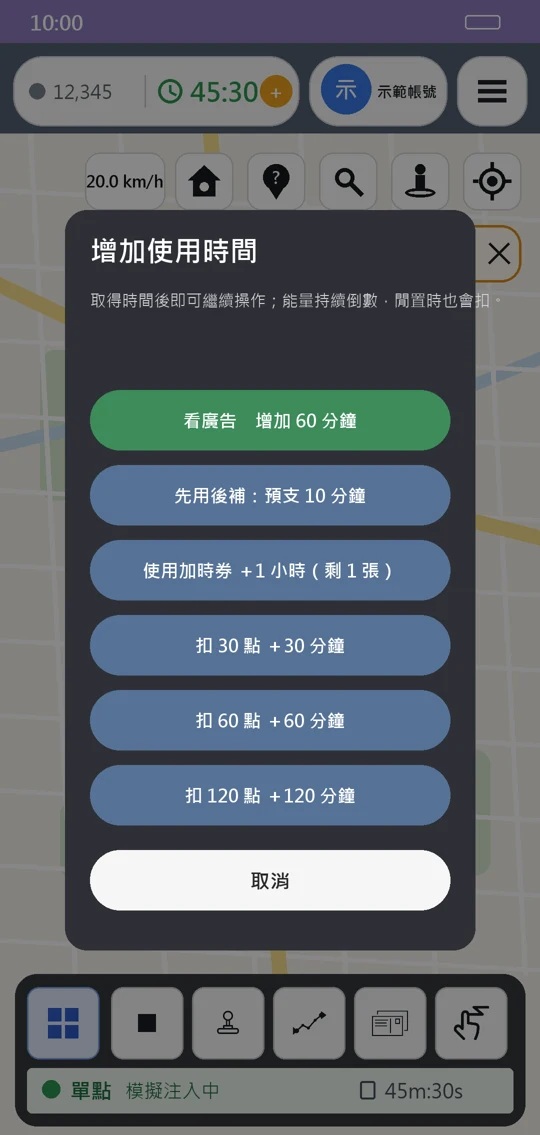
When time runs out, one ad gets you going again.
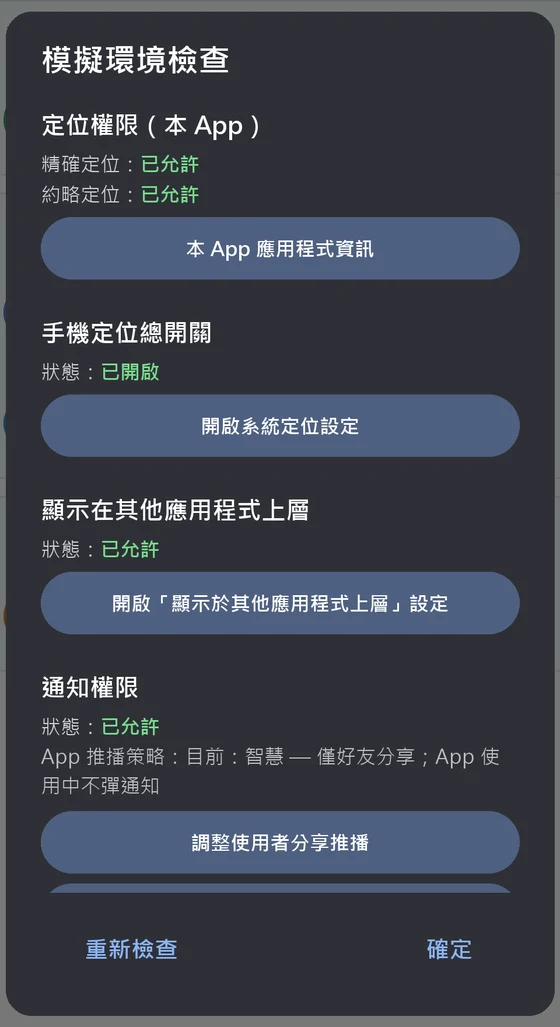
The in-app environment check tells you exactly which item is still missing.
Not sure how? The first tutorial walks through the whole setup. Tutorials →
No. Stop simulating or switch to Pass and the phone is back on the real GPS. Nothing in the system is modified — it uses Android's official "mock location app" mechanism.
No. You only need to select the mock location app in developer options.
The mock position stays at the last coordinate and does not jump back to the real GPS. A time ticket, leaf coins, or the 10-minute advance (free; it does not spend leaf coins) will retry the locate that was just blocked. A rewarded ad only adds time. It does not retry that locate; after the ad you press go again.
Yes. YS Mock exposes an interface so an extension can hand a calculated coordinate to YS Mock to apply. Contact us first for authorisation and a key; unauthorised calls are refused.
The app is available in Traditional Chinese, English, Japanese and Korean.
No. Every feature is in the free version — no tiers, no monthly fee, no one-off unlock. The app does not even contain any payment code. What you spend is usage time: one ad adds 60 minutes and time accumulates, a first install starts with 30 minutes, and you can also top up with Leaf Coins or time tickets. Each ad unlocks all features, not a subset.
Because real sessions are usually short: set a route, take one trip, get what you came for, and you are done well inside an hour. Usage time counts down in real time from the moment it is granted — including while idle or in Pass mode — so a longer block would mostly go to waste. When you do need a long stretch, just watch a few ads in a row (20 seconds between ads, up to 20 per day).
YS Mock exposes an interface: an extension works out the target coordinate, and YS Mock still performs the positioning. Extensions already run through it, such as map-assistant tools.
Email us the intended use and package name and we issue a key. Keys are bound to the signing certificate; a new certificate needs a new key.
Query status, submit a coordinate, read the remaining usage time, and prompt the user to top up when time runs low.
Extensions must follow the rules of wherever they are distributed. YS Mock only accepts authorised calls.
Watching one tutorial first makes the setup much smoother.